> ## Documentation Index
> Fetch the complete documentation index at: https://docs.ditto.live/llms.txt
> Use this file to discover all available pages before exploring further.
# Troubleshooting Guide
> This guide covers how to read the debug logs and debug your Ditto app.
Refer to any of the following to help you get back on track:
If you need technical support, submit a technical support request ticket. (See [Contact Us](https://support.ditto.com))
## Obtaining and Analyzing the Debug Logs
To troubleshoot a peer-to-peer data sync issue, first determine the cause of the
issue by obtaining and analyzing the database error and warning messages
captured in the debug logs.
### Setting the Logs to Debug Level
As demonstrated in the following snippet, obtain the database debug logs
*before* Ditto is initialized so that any potential issues related to the file
system access and authentication background tasks that run during initialization
are tracked. You want to begin gathering logs before Ditto is initialized in
order to capture any potential issues with those two background tasks.
```swift Swift theme={null}
DittoLogger.minimumLogLevel = .debug
let ditto = Ditto(identity: .onlinePlayground(
appID: "REPLACE_ME_WITH_YOUR_APP_ID",
token: "REPLACE_ME_WITH_YOUR_PLAYGROUND_TOKEN"
))
do {
try ditto.startSync()
} catch (let err) {
print(err.localizedDescription)
}
```
```kotlin Kotlin theme={null}
try {
val androidDependencies = DefaultAndroidDittoDependencies(context)
val identity = DittoIdentity.OnlinePlayground(
androidDependencies,
appId = "REPLACE_ME_WITH_YOUR_APP_ID",
token = "REPLACE_ME_WITH_YOUR_PLAYGROUND_TOKEN"
)
DittoLogger.minimumLogLevel = DittoLogLevel.DEBUG
ditto = Ditto(androidDependencies, identity)
ditto.startSync()
} catch (e: DittoError) {
Log.e("Ditto error", e.message!!)
}
```
```js JS theme={null}
import { init, Ditto, Logger } from "@dittolive/ditto"
// Set the Ditto log level to Debug
Logger.minimumLogLevel = 'Debug'
const identity: Identity = {
type: 'onlinePlayground',
appID: 'REPLACE_ME_WITH_YOUR_APP_ID',
token: 'REPLACE_ME_WITH_YOUR_PLAYGROUND_TOKEN'
}
const ditto = new Ditto(identity, './your-ditto-application-data-path')
ditto.startSync()
```
```java Java theme={null}
DittoDependencies androidDependencies = new DefaultAndroidDittoDependencies(this.context);
// Set the Ditto min log level to Debug
DittoLogger.setMinimumLogLevel(DittoLogLevel.DEBUG);
try {
ditto.startSync();
} catch(DittoError e) {
//handle error
}
```
```csharp C# theme={null}
try
{
DittoLogger.SetMinimumLogLevel(DittoLogLevel.Debug);
var ditto = new Ditto(DittoIdentity.OnlinePlayground("REPLACE_ME_WITH_YOUR_APP_ID", "REPLACE_ME_WITH_YOUR_PLAYGROUND_TOKEN", true), path);
ditto.StartSync();
}
catch (DittoException ex)
{
Console.WriteLine($"Ditto Error {ex.Message}");
}
```
```cpp C++ theme={null}
try
{
DittoLogger.SetMinimumLogLevel(DittoLogLevel.Debug);
var ditto = new Ditto(DittoIdentity.OnlinePlayground("REPLACE_ME_WITH_YOUR_APP_ID", "REPLACE_ME_WITH_YOUR_PLAYGROUND_TOKEN", true), path);
ditto.StartSync();
}
catch (DittoException ex)
{
Console.WriteLine($"Ditto Error {ex.Message}");
}
```
```rust Rust theme={null}
use dittolive_ditto::prelude::*;
use dittolive_ditto::identity::get_development_provider;
use std::time::Duration;
DittoLogger::set_minimum_log_level(LogLevel::Debug);
let config = DittoConfig::new(
std::env::var("DITTO_APP_ID").expect("DITTO_APP_ID must be set"),
DittoConfigConnect::Server {
url: std::env::var("DITTO_URL")
.expect("DITTO_URL must be set")
.parse()
.unwrap(),
},
);
let ditto = Ditto::open_sync(config)?;
let auth = ditto.auth().expect("Auth is available in Server mode");
auth.set_expiration_handler(async |ditto: &Ditto, _duration: Duration| {
if let Some(auth) = ditto.auth() {
let token = std::env::var("DITTO_PLAYGROUND_TOKEN")
.expect("DITTO_PLAYGROUND_TOKEN must be set");
let provider = get_development_provider();
if let Err(e) = auth.login(&token, &provider) {
eprintln!("Authentication failed: {}", e);
}
} else {
eprintln!("Ditto authentication not configured");
}
});
ditto.sync().start()?;
```
```go Go theme={null}
ditto.SetMinimumLogLevel(ditto.LogLevelDebug)
config := ditto.DefaultDittoConfig().
WithDatabaseID("REPLACE_ME_WITH_YOUR_APP_ID").
WithConnect(&ditto.DittoConfigConnectServer{URL: dittoAuthURL})
dit, err := ditto.Open(config)
if err != nil {
log.Fatalf("error: failed to open Ditto: %v\n", err)
}
defer dit.Close() // cleanup
dit.Auth().SetExpirationHandler(
func(d *ditto.Ditto, timeUntilExpiration time.Duration) {
clientInfoJSON, err := d.Auth().Login(
"REPLACE_ME_WITH_YOUR_PLAYGROUND_TOKEN",
ditto.DevelopmentAuthenticationProvider(),
)
if err != nil {
log.Errorf("error: expiration handler: %v\n", err)
} else {
log.Printf("info: expiration handler: logged in; client info: %v\n", clientInfoJSON)
}
})
if err := dit.Sync().Start(); err != nil {
log.Errorf("Unable to start sync: %v\n", err)
}
```
### Authentication
For server connection mode with custom authentication identities, the first thing
that Ditto needs to do is authenticate to the Big Peer.
Confirm that all devices share the same AppID by verifying that the `app_id` log line contains your AppID:
```json JSON theme={null}
Ditto::new_from_uninit_ditto; app_id = 22389e28-9590-4cbf-b683-b3ac5ab2269e; site_id = 13769592724050309105; history_tracking = Disabled; presence_broadcast_targets = SmallPeersOnly
```
Once confirmed, verify that authentication was successful.
```yaml JSON theme={null}
AuthClient: authentication request succeeded
```
Once authentication is successful, client re-authentication does not occur until
the device's local certificate expires, as indicated by the following:
```yaml JSON theme={null}
AuthClient: refreshing token in 302399 seconds
```
#### Incorrect APP ID
If the appID or token are incorrect, the following displays in the debug logs:
```yaml JSON theme={null}
AuthClient: failed to get JSON for auth response; e = reqwest::Error { kind: Decode, source: Error("expected value", line: 1, column: 1)
```
```yaml JSON theme={null}
AuthClient: No valid Web token present. Can not request certificate.
AuthClient: failed to obtain a certificate ValueNotFound
```
See if the following fixes your issue:
1. Log in to the [Portal](https://portal.ditto.live)
2. Go to your App.
3. Copy the AppID and Playground Token and use it in your Ditto initialization.
#### Outdated certificate
```yaml JSON theme={null}
[DEBUG] 2023-08-03T17:36:35.046Z: failed to connect to peer; error = Connect failed because a TLS stream couldn't be established: invalid peer certificate contents: invalid peer certificate: UnknownIssuer; remote_peer = MulticastRemotePeer(id: 10, announce Q2RLCGEYdpLwjFditto)
```
If you see the above message, your device's locally cached certificate is invalid. The device needs to call `ditto.auth.logout()` and reconnect to the Internet to get a new certificate. Alternatively, you can clear the local cache by reinstalling the mobile application or clearing the local persistence directory.
#### Authentication server unavailable
```shell Shell theme={null}
Error attempting authentication with token: Could not connect to authentication server
```
```shell Shell theme={null}
Error attempting authentication with token: Failed to authenticate: Internal server error; debug: Some("Ditto cloud failed to decode the response body. This is most likely due to malformed JSON in the response: error decoding response body: expected value at line 1 column 1"); client info: None
```
If you see either of the above messages, this is most likely a problem with your authentication webhook. There is a debugging level log line that will provide more information about the authentication webhook if you need more information. Send a POST request with a JSON stringified body to your server to ensure that the AWS-hosted Big Peer servers located in U.S. regions successfully send POST requests to your authentication server.
```shell Shell theme={null}
curl -x POST https://my.webhook.com
```
#### Ditto closing prematurely
If you see that Ditto is unable to sync, and see the log lines below, it's possible that your ditto instance is being deallocated before it is able to synchronize with other peers. Ensure that the ditto instance is initialized and saved in a global variable that is long-lived for the duration of the application.
```yaml Shell theme={null}
[DEBUG] 2024-06-06T23:45:29.634Z: Shutting down Ditto
[INFO] 2024-06-06T23:45:29.634Z: Peer shutting down
[DEBUG] 2024-06-06T23:45:29.634Z: stopping HTTP server
[DEBUG] 2024-06-06T23:45:29.634Z: stopping TCP server
[INFO] 2024-06-06T23:45:29.634Z: Peer shutdown done
[DEBUG] 2024-06-06T23:45:29.634Z: Ditto shutdown complete
[DEBUG] 2024-06-06T23:45:29.634Z: Deallocating Ditto
```
#### Common mistakes
1. `authenticationExpiringSoon` and `authenticationRequired` both need to be
implemented according to the sample code.
2. Since callback objects are only invoked when Ditto initializes and the client authentication certificate expires, do not create subscriptions inside callbacks.
3. Keep a strong reference to the AuthClient for the duration of the Ditto object, otherwise the auth handler will become garbage collected at an inappropriate time.
4. Verify that your webhook provider name is correctly copied in the Ditto portal.
5. The provider name given to the Ditto Client must match a provider name in the Portal (e.g., `my-auth`).
 #### Is your AuthClient becoming garbage collected?
Ensure that you keep a reference to the AuthClient in scope for the duration that Ditto is also active. You should attach the dittoAuth variable to the object so it does not get garbage collected.
For example:
```csharp C# theme={null}
namespace Sync {
public class DittoClient {
private Ditto ditto;
private DittoAuthDelegate dittoAuthDelegate;
public DittoClient(string appId, string id, string jwt) {
dittoAuthDelegate = new DittoAuthDelegate(id, jwt);
ditto = new Ditto(identity);
}
...
}
}
```
### Syncing With Big Peer
A small peer sync with the Big Peer using a WebSocket connection.
The debug logs will tell you each step to create a successful WebSocket connection to the big peer.
First, the peer will discover the big peer and you'll see a `Discovered` event.
```yaml JSON theme={null}
peer_event = Discovered(WebsocketClientPeer(WebsocketClientRemotePeer { id: 4, transport_id: 3, local_announce: LocalAnnounceData { outer_protocol_version: 50, os: Generic, network_id: 2383820004, query_overlap_group: None, device_name: "Mozilla/5.0 (Macintosh; Intel Mac OS X 10_15_7) AppleWebKit/537" }, connect_address: "wss://", routing_hint: RoutingHint(0), condition_sender: UnboundedSender { chan: Tx { inner: Chan { tx: Tx { block_tail: 0x242120, tail_position: 0 }, semaphore: Semaphore(0), rx_waker: AtomicWaker, tx_count: 2, rx_fields: "..." } } } }))
```
If the WebSocket connection that links the Small Peer to the Big Peer is
successful, the debug logs contain the `ConnectionEstablished` event:
```yaml JSON theme={null}
peer_event = ConnectionEstablished(PeerConnection { id: 4, connection_type: WsClient, remote_announce: Announce { outer_protocol_version: Some('2'), os: Some(Linux), network_id: Some(1356909299), query_overlap_group: None, device_name: Some("Ditto Cloud") }, remote_peer_id: SiteIdAndPubKey([...])
```
If you see `StreamFailed` or `ConnectionEnded` or any errors related to WebSocket connection with the Big Peer, there is likely an error in the Big Peer subscription server. For troubleshooting help, contact Ditto support.
#### Corrupted certificate
If your certificate chain is corrupted, you will see the following.
```yaml JSON theme={null}
Connect failed because the underlying websocket transport reported an error: TLS error: webpki error: UnsupportedCriticalExtensio
```
To fix this, please try to reset your certificate chain. On MacOS, open the Keychain Acess application and navigate to the settings, and click "Reset default keychains..."
```yaml JSON theme={null}
Keychain.app > Settings > Reset Default Keychains
```
You will then see that the underlying physical replication session has been
started with `phy started`.
The pkSOME\_BYTES identifier displays the public key to the Big Peer instance that
a Small Peer WebSocket connection has temporary sync access.
Note that the following snippet is merely an example; the `pkSOME_BYTES` identifier is not a guaranteed static variable.
```yaml JSON theme={null}
phy started; remote = pkAocCgkMCh0wD6Y83qm2UHtiN6264Jivvimg6xdR778ODaKODFKw
```
Once temporary remote access is authorized, the following debug log message
appears to indicate that the Small Peer (client) WebSocket connection to the Big
Peer (cloud server) is successful:
```yaml JSON theme={null}
VirtConnElectedNewConn { new_conn: Some((4, WsClient)), old_conn: None }
```
### Permissions and Subscriptions
For the Small Peer to have an active subscription to read and write to other peers, it must first be authorized access by a Big Peer. If the Small Peer does not have permissions to access database replication, it cannot subscribe to its collections to read and write.
#### Permissions
Given this, before you check the Small Peer's active read-write subscriptions, confirm that the Small Peer has permissions to access the database.
```yaml JSON theme={null}
local permission: Permission {
read: PermissionRules { everything: true, queries_by_collection: {} },
write: PermissionRules { everything: true, queries_by_collection: {} }
},
remote permission: Permission {
read: PermissionRules { everything: true, queries_by_collection: {} },
write: PermissionRules { everything: true, queries_by_collection: {} }
}
```
Local permissions refer to the current peer that is running on the device.
Once the peer is authorized, it will begin to print the active subscriptions. Ditto will print the active subscriptions every time the sync engine wakes up. This includes a local write to the
database or a sync event from another peer writing to their local database.
You will want to verify that these permissions are correct and what you expect. A peer cannot subscribe to a collection if it does not have read permission.
The default Big Peer remote permission to access a connected Small Peer local
database replication to read and write is as follows:
```yaml JSON theme={null}
write: { everything: true, queries_by_collection: {} }
read: { everything: true, queries_by_collection: {} }
```
#### Subscriptions
Now that default permissions are verified, confirm that the Big Peer is connected to a Small Peer and the local-to-global database replication task is running.
Ditto prints a list of all the queries that the peer is currently subscribed to.
```yaml JSON theme={null}
local subscription: Subscription { everything: false, queries: {"__presence": {Query { expr: "_id != '13407763363308666127' && v == 3 && t > 1682717143093", order_by: [], limit: None, offset: None }}, "tasks": {Query { expr: "isDeleted == false", order_by: [], limit: None, offset: None }}} }, remote subscription: Subscription { everything: true, queries: {} }
```
By default, each peer includes some internal subscriptions, which are denoted using a double underscore (`__`) before the collection name; for example, the following default internal `__presence` subscription:
```yaml JSON theme={null}
{"__presence": { expr: "_id != '13407763363308666127' && v == 3 && t > 1682717143093", order_by: [], limit: None, offset: None }}
```
You will also see a list of remote subscriptions. The big peer subscribes to everything, so you will see the following line which references the big peer:
```yaml JSON theme={null}
remote subscription: Subscription { everything: true, queries: {} }
```
If there are any application-level subscriptions, they will be listed by collection. For instance, if a Small Peer that subscribes to all tasks that are not deleted, the following appears:
```yaml JSON theme={null}
"tasks": {Query { expr: "isDeleted == false", order_by: [], limit: None, offset: None }}}
```
If a subscription changes, the following appears:
```yaml JSON theme={null}
Application: notifying a local subscription change
```
If you have problems with subscriptions or permssions, you can try the operations with global read and write permission to verify that sync succeeds in this case.
**Check the following**
1. Do your permissions match your subscriptions? If you do not have permission to subscribe to data, it will not sync to the device.
2. Are you subscribing to what you expect to see?
3. Do you have more subscriptions than you expect to have?
4. Do your live queries match the subscriptions?
#### Query Parsing Errors
```swift Swift theme={null}
ditto.store.collection("myCollection").find("").subscribe() // -> ParseError
```
```kotlin Kotlin theme={null}
ditto.store.collection("myCollection").find("").subscribe() // -> ParseError
```
```js JS theme={null}
ditto.store.collection("myCollection").find("").subscribe() // -> ParseError
```
```csharp C# theme={null}
ditto.store.collection("myCollection").find("").subscribe() // -> ParseError
```
```cpp C++ theme={null}
ditto.store.collection("myCollection").find("").subscribe() // -> ParseError
```
```rust Rust theme={null}
ditto.store.collection("myCollection").find("").subscribe() // -> ParseError
```
`ParseError` can be printed in the debug logs when there is a problem with your query. For example, if you create a subscription in Swift that is the empty string, you will see a `ParseError` in the logs.
### Writes
If a Write is made to the local database, the following debugging messages appear:
```json JSON theme={null}
Write txn committed; txn_id = 40; originator = User
```
```json JSON theme={null}
Notifying a database change; transaction = 40
```
Once a Write is made to the local database, Ditto re-prints the active subscriptions and permissions to access the debug log, as demonstrated in the previous snippet.
Next, the Small Peer creates the "update file." Annotated in the debug logs as follows, the update file provides the status of the data update and, using the pkA and pkB identifiers, indicates the two peers involved in the data exchange.
```json JSON theme={null}
Creating a sending update, sending_update_path = "pkA/pkB/sending_update"
```
Once the local peer finishes creating the update file, the following appears to indicate that the update file is complete and the local peer is ready to send the new update to the remote peer. Note that at this time the local Write has yet to be synchronized across all connected peers.
```json JSON theme={null}
update creation done; since_index = 40; new_update_created = true; num_docs = 1; elapsed = 908us 708ns
```
If the local peer has received the update, all connected peers are synchronized, and the local database replication process is complete, the following appears:
```json JSON theme={null}
No next update chunk to send - setting is_ready to false
No message to send
```
#### Did your device connect to the internet?
Server authenticated applications must connect to Ditto Server first *before* going offline.
### Do you have a firewall or proxy enabled that is blocking Ditto's connection to the Big Peer?
A proxy may either block connections or cause errors in the log by substituting its own TLS certificate: `invalid certificate: UnknownIssuer`. If you see this log message you will either need to get Ditto unblocked or add the CA certificate to the Small Peer's trusted certificate store.
Verify that you can reach the following endpoints (replace `REPLACE_ME_WITH_YOUR_URL_HOST` with the host of your **URL** from the Ditto Portal, Connect via SDK). You should see output similar to below:
```json JSON theme={null}
> nc -v REPLACE_ME_WITH_YOUR_URL_HOST 443
Connection to REPLACE_ME_WITH_YOUR_URL_HOST port 443 [tcp/https] succeeded!
^C
```
```json JSON theme={null}
> curl -i https://REPLACE_ME_WITH_YOUR_URL_HOST/_ditto/auth/login
HTTP/1.1 405 Method Not Allowed
Date: Fri, 30 Sep 2022 02:03:36 GMT
Content-Type: text/plain; charset=utf-8
Content-Length: 23
Connection: keep-alive
Access-Control-Allow-Origin: *
Access-Control-Allow-Credentials: true
Access-Control-Allow-Methods: GET, PUT, POST, DELETE, PATCH, OPTIONS
Access-Control-Allow-Headers: X-DITTO-ENSURE-INSERT,X-HYDRA-ENSURE-INSERT,X-DITTO-CLIENT-ID,X-HYDRA-CLIENT-ID,Accept,Referer,Keep-Alive,User-Agent,X-Requested-With,If-Modified-Since,Cache-Control,Content-Type,Authorization,X-Forwarded-For
Access-Control-Max-Age: 1728000
HTTP method not allowed%
```
If this test passes, next check to see if WebSockets are blocked on your machine. Some corporate networks, firewalls, or proxies block the HTTP upgrade packet that tells the WebSocket server to keep the connection alive. Check with your IT administrator to see if your computer is configured to block WebSocket connections.
### Connection issues
If you are unable to see connections over particular transports, first ensure you are following the SDK Setup guide for your language.
After you verify that your app is set up correctly, if connection issues continue follow these debugging steps.
#### Bluetooth
1. Turn Use Location on
2. Turn Bluetooth Scanning on
3. Are permissions set correctly? See
4. Go to your OS-level permissions for Bluetooth and clear the app permissions for your application.
5. Delete the app, install it again, and open it. Does it ask for Bluetooth permissions?
#### Apple Wireless Direct Link, P2P-Wifi, Wifi Aware
1. Go to your OS-level permissions and clear the app permissions for your application.
2. Delete the app, install it again, and open it. Does it ask for location permissions?
3. If you are using a custom
#### Local Area Network (LAN)
1. Are permissions set correctly? See
2. Are both devices connected to the same WiFi network?
3. Check your router settings and see the
4. If your device has VPN enabled, then peers can fail to communicate. Ensure that your VPN supports UDP multicasting.
### Debugging Blocked Transactions
This section only discusses blocked transactions on native platforms (e.g. iOS, Android, Windows, Linux). Ditto in web browsers operates sufficiently differently and isn't covered here.
Blocked write transactions will automatically retry until they succeed. A blocked write transaction will never crash. Howewever, blocked write transactions are a common cause for poor database performance. Long running blocks are generally bad since they mean that nothing else can be writing to the database during this time. This could manifest itself as one of many problems:
* Unresponsive UI: an interaction might try to update a document, but is blocked by an existing write transaction
* Slow sync: new updates cannot be integrated into the store, since they're blocked by another write transaction
A blocked write transaction can hint that something is wrong with the application code, or at a deeper level in Ditto. This page contains some tips & tricks to help understand the situation.
The process of unblocking is automatic and you don't need to write any code to handle this. However, you can drastically reduce the chance of blocking transactions by making sure a device is only syncing the data it really needs.
#### Did your certificate expire and fail to refresh?
When using `OnlineWithAuthentication`,
Send a POST request with a JSON stringified body to your server to ensure that Ditto Server successfully sends POST requests to your authentication server.
1. **authenticationExpiringSoon**
2. Since callback objects are only invoked when Ditto initializes and the client authentication certificate expires, do not create subscriptions inside callbacks.
3. Keep a strong reference to the AuthClient for the duration of the Ditto object, otherwise the auth handler will become garbage collected at an inappropriate time.
#### Verify that your webhook provider name is [correctly copied in the Ditto portal](https://legacydocs.ditto.live/javascript/common/security/authentication#login)
The provider name given to the Ditto Client must match a provider name in the Portal (e.g., **my-auth**).
#### Is your AuthClient becoming garbage collected?
Ensure that you keep a reference to the AuthClient in scope for the duration that Ditto is also active. You should attach the dittoAuth variable to the object so it does not get garbage collected.
For example:
```csharp psuedocode theme={null}
namespace Sync {
public class DittoClient {
private Ditto ditto;
+ private DittoAuthDelegate dittoAuthDelegate;
public DittoClient(string appId, string id, string jwt) {
+ dittoAuthDelegate = new DittoAuthDelegate(id, jwt);
ditto = new Ditto(identity);
}
...
}
}
```
### Bluetooth
1. Turn Use Location on
2. Turn Bluetooth Scanning on
3. Are permissions set correctly? From [SDK Setup Guides](/sdk/latest/install-guides/install-guides), refer to the installation article for your language
4. Go to your OS-level permissions for Bluetooth and clear the app permissions for your application.
5. Delete the app, install it again, and open it. Does it ask for Bluetooth permissions?
6. Android only: are you calling `ditto.refreshPermissions()`?
### Apple Wireless Direct Link, P2P-Wifi, Wifi Aware
1. Are permissions set correctly? (From [SDK Setup Guides](/sdk/latest/install-guides/install-guides), refer to the installation article for your language)
2. Go to your OS-level permissions and clear the app permissions for your application.
3. Delete the app, install it again, and open it. Does it ask for location permissions?
4. If you are using a custom `TransportConfig`, make sure you have enabled all peer-to-peer transports using `enableAllPeerToPeer()`.
### Local Area Network (LAN)
1. Are permissions set correctly? From [SDK Setup Guides](/sdk/latest/install-guides/install-guides), refer to the installation article for your language)
2. Are both devices connected to the same WiFi network?
3. Check your router settings and see Lan Optimizations
4. If your device has VPN enabled, then peers can fail to communicate. Ensure that your VPN supports UDP multicasting.
## Synchronization seems slow, or comes to a halt over time
* Ensure that you are only creating a fixed number of live queries, with a smaller amount of data.
* Avoid using `LIMIT` or `ORDER BY` with mutable fields in subscription queries. See [Stateful Subscription Performance Guidelines](/stateful-subscriptions) for details.
* Evict irrelevant data. You can evict all irrelevant once per day
* Turn off verbose logging. Verbose logging can slow down replication considerably, especially with thousands of documents. Hence, it could look like that sync is stalling, but that can be indistinguishable from the logging mechanism slowing down ditto because it is trying to write too many lines.
* Look at the size of your ditto directory. Is it very large? Large databases will be slower. Try to query less data.
## App is using too much memory, why?
* Use profiling tools for your platform to better understand where the memory leak
may be occurring.
* Ensure you are not loading too much data into memory at once. Ditto is designed to work with large datasets, but you should only load the data you need at any given time.
* A common issue we see in reactive apps is a failure to dispose of resources as
conditions change. Your app could create a large accumulation of publishers that
infinitely grow. Every liveQuery and subscription in ditto must be explicitly
stopped using the `stop` or `cancel` API. See [syncing data](/sdk/latest/sync/syncing-data) for more information.
## Debugging Blocked Transactions
This section only discusses blocked transactions on **native** platforms (e.g. iOS, Android, Windows, Linux). Ditto in web browsers operates sufficiently differently and isn't covered here.
Blocked write transactions will automatically retry until they succeed. A blocked write transaction will never crash. Howewever, blocked write transactions are a common cause for poor database performance. Long running blocks are generally bad since they mean that nothing else can be writing to the database during this time. This could manifest itself as one of many problems:
* Unresponsive UI: an interaction might try to update a document, but is blocked by an existing write transaction
* Slow sync: new updates cannot be integrated into the store, since they're blocked by another write transaction
A blocked write transaction can hint that something is wrong with the application code, or at a deeper level in Ditto. This page contains some tips & tricks to help understand the situation.
The process of unblocking is automatic and you don't need to write any code to handle this. However, you can drastically reduce the chance of blocking transactions by **making sure a device is only syncing the data it really needs**.
### What is a "blocked" transaction?
At any given time, there can be only one write transaction. Any subsequent attempts to open another write transaction will become blocked until the existing write transaction finishes.
### Read vs. Write Transactions
Read transactions operate differently to write transactions.
Read transactions cannot be blocked and can run in parallel with write transactions. Read transactions don't block each other, don't block write transactions, and aren't blocked by write transactions.
If a write transaction is blocked, Ditto will log a message with increasing severity every 10s.
| **Time (t) a transaction has been blocked** | **Log Level** |
| ------------------------------------------- | ------------- |
| t ≤ 30s | DEBUG |
| 31s \< t ≤ 120s | WARN |
| 120s \< t | ERROR |
To see these logs in the database, it's important to have a minimum log level set. Transactions that are blocked for over 2 minutes should always be visible in the logs.
If **INFO** level is used, then **INFO**, **WARN**, and **ERROR** messages will all be included in the logs. This means any write transactions blocking for more than 30s should always be visible in the logs.
### Reading the Logs
If a write transaction is blocked, the device logs will look something like the following. In this example we can see a write transaction was blocked for a total of 150s (or 2.5 minutes).
#### Is your AuthClient becoming garbage collected?
Ensure that you keep a reference to the AuthClient in scope for the duration that Ditto is also active. You should attach the dittoAuth variable to the object so it does not get garbage collected.
For example:
```csharp C# theme={null}
namespace Sync {
public class DittoClient {
private Ditto ditto;
private DittoAuthDelegate dittoAuthDelegate;
public DittoClient(string appId, string id, string jwt) {
dittoAuthDelegate = new DittoAuthDelegate(id, jwt);
ditto = new Ditto(identity);
}
...
}
}
```
### Syncing With Big Peer
A small peer sync with the Big Peer using a WebSocket connection.
The debug logs will tell you each step to create a successful WebSocket connection to the big peer.
First, the peer will discover the big peer and you'll see a `Discovered` event.
```yaml JSON theme={null}
peer_event = Discovered(WebsocketClientPeer(WebsocketClientRemotePeer { id: 4, transport_id: 3, local_announce: LocalAnnounceData { outer_protocol_version: 50, os: Generic, network_id: 2383820004, query_overlap_group: None, device_name: "Mozilla/5.0 (Macintosh; Intel Mac OS X 10_15_7) AppleWebKit/537" }, connect_address: "wss://", routing_hint: RoutingHint(0), condition_sender: UnboundedSender { chan: Tx { inner: Chan { tx: Tx { block_tail: 0x242120, tail_position: 0 }, semaphore: Semaphore(0), rx_waker: AtomicWaker, tx_count: 2, rx_fields: "..." } } } }))
```
If the WebSocket connection that links the Small Peer to the Big Peer is
successful, the debug logs contain the `ConnectionEstablished` event:
```yaml JSON theme={null}
peer_event = ConnectionEstablished(PeerConnection { id: 4, connection_type: WsClient, remote_announce: Announce { outer_protocol_version: Some('2'), os: Some(Linux), network_id: Some(1356909299), query_overlap_group: None, device_name: Some("Ditto Cloud") }, remote_peer_id: SiteIdAndPubKey([...])
```
If you see `StreamFailed` or `ConnectionEnded` or any errors related to WebSocket connection with the Big Peer, there is likely an error in the Big Peer subscription server. For troubleshooting help, contact Ditto support.
#### Corrupted certificate
If your certificate chain is corrupted, you will see the following.
```yaml JSON theme={null}
Connect failed because the underlying websocket transport reported an error: TLS error: webpki error: UnsupportedCriticalExtensio
```
To fix this, please try to reset your certificate chain. On MacOS, open the Keychain Acess application and navigate to the settings, and click "Reset default keychains..."
```yaml JSON theme={null}
Keychain.app > Settings > Reset Default Keychains
```
You will then see that the underlying physical replication session has been
started with `phy started`.
The pkSOME\_BYTES identifier displays the public key to the Big Peer instance that
a Small Peer WebSocket connection has temporary sync access.
Note that the following snippet is merely an example; the `pkSOME_BYTES` identifier is not a guaranteed static variable.
```yaml JSON theme={null}
phy started; remote = pkAocCgkMCh0wD6Y83qm2UHtiN6264Jivvimg6xdR778ODaKODFKw
```
Once temporary remote access is authorized, the following debug log message
appears to indicate that the Small Peer (client) WebSocket connection to the Big
Peer (cloud server) is successful:
```yaml JSON theme={null}
VirtConnElectedNewConn { new_conn: Some((4, WsClient)), old_conn: None }
```
### Permissions and Subscriptions
For the Small Peer to have an active subscription to read and write to other peers, it must first be authorized access by a Big Peer. If the Small Peer does not have permissions to access database replication, it cannot subscribe to its collections to read and write.
#### Permissions
Given this, before you check the Small Peer's active read-write subscriptions, confirm that the Small Peer has permissions to access the database.
```yaml JSON theme={null}
local permission: Permission {
read: PermissionRules { everything: true, queries_by_collection: {} },
write: PermissionRules { everything: true, queries_by_collection: {} }
},
remote permission: Permission {
read: PermissionRules { everything: true, queries_by_collection: {} },
write: PermissionRules { everything: true, queries_by_collection: {} }
}
```
Local permissions refer to the current peer that is running on the device.
Once the peer is authorized, it will begin to print the active subscriptions. Ditto will print the active subscriptions every time the sync engine wakes up. This includes a local write to the
database or a sync event from another peer writing to their local database.
You will want to verify that these permissions are correct and what you expect. A peer cannot subscribe to a collection if it does not have read permission.
The default Big Peer remote permission to access a connected Small Peer local
database replication to read and write is as follows:
```yaml JSON theme={null}
write: { everything: true, queries_by_collection: {} }
read: { everything: true, queries_by_collection: {} }
```
#### Subscriptions
Now that default permissions are verified, confirm that the Big Peer is connected to a Small Peer and the local-to-global database replication task is running.
Ditto prints a list of all the queries that the peer is currently subscribed to.
```yaml JSON theme={null}
local subscription: Subscription { everything: false, queries: {"__presence": {Query { expr: "_id != '13407763363308666127' && v == 3 && t > 1682717143093", order_by: [], limit: None, offset: None }}, "tasks": {Query { expr: "isDeleted == false", order_by: [], limit: None, offset: None }}} }, remote subscription: Subscription { everything: true, queries: {} }
```
By default, each peer includes some internal subscriptions, which are denoted using a double underscore (`__`) before the collection name; for example, the following default internal `__presence` subscription:
```yaml JSON theme={null}
{"__presence": { expr: "_id != '13407763363308666127' && v == 3 && t > 1682717143093", order_by: [], limit: None, offset: None }}
```
You will also see a list of remote subscriptions. The big peer subscribes to everything, so you will see the following line which references the big peer:
```yaml JSON theme={null}
remote subscription: Subscription { everything: true, queries: {} }
```
If there are any application-level subscriptions, they will be listed by collection. For instance, if a Small Peer that subscribes to all tasks that are not deleted, the following appears:
```yaml JSON theme={null}
"tasks": {Query { expr: "isDeleted == false", order_by: [], limit: None, offset: None }}}
```
If a subscription changes, the following appears:
```yaml JSON theme={null}
Application: notifying a local subscription change
```
If you have problems with subscriptions or permssions, you can try the operations with global read and write permission to verify that sync succeeds in this case.
**Check the following**
1. Do your permissions match your subscriptions? If you do not have permission to subscribe to data, it will not sync to the device.
2. Are you subscribing to what you expect to see?
3. Do you have more subscriptions than you expect to have?
4. Do your live queries match the subscriptions?
#### Query Parsing Errors
```swift Swift theme={null}
ditto.store.collection("myCollection").find("").subscribe() // -> ParseError
```
```kotlin Kotlin theme={null}
ditto.store.collection("myCollection").find("").subscribe() // -> ParseError
```
```js JS theme={null}
ditto.store.collection("myCollection").find("").subscribe() // -> ParseError
```
```csharp C# theme={null}
ditto.store.collection("myCollection").find("").subscribe() // -> ParseError
```
```cpp C++ theme={null}
ditto.store.collection("myCollection").find("").subscribe() // -> ParseError
```
```rust Rust theme={null}
ditto.store.collection("myCollection").find("").subscribe() // -> ParseError
```
`ParseError` can be printed in the debug logs when there is a problem with your query. For example, if you create a subscription in Swift that is the empty string, you will see a `ParseError` in the logs.
### Writes
If a Write is made to the local database, the following debugging messages appear:
```json JSON theme={null}
Write txn committed; txn_id = 40; originator = User
```
```json JSON theme={null}
Notifying a database change; transaction = 40
```
Once a Write is made to the local database, Ditto re-prints the active subscriptions and permissions to access the debug log, as demonstrated in the previous snippet.
Next, the Small Peer creates the "update file." Annotated in the debug logs as follows, the update file provides the status of the data update and, using the pkA and pkB identifiers, indicates the two peers involved in the data exchange.
```json JSON theme={null}
Creating a sending update, sending_update_path = "pkA/pkB/sending_update"
```
Once the local peer finishes creating the update file, the following appears to indicate that the update file is complete and the local peer is ready to send the new update to the remote peer. Note that at this time the local Write has yet to be synchronized across all connected peers.
```json JSON theme={null}
update creation done; since_index = 40; new_update_created = true; num_docs = 1; elapsed = 908us 708ns
```
If the local peer has received the update, all connected peers are synchronized, and the local database replication process is complete, the following appears:
```json JSON theme={null}
No next update chunk to send - setting is_ready to false
No message to send
```
#### Did your device connect to the internet?
Server authenticated applications must connect to Ditto Server first *before* going offline.
### Do you have a firewall or proxy enabled that is blocking Ditto's connection to the Big Peer?
A proxy may either block connections or cause errors in the log by substituting its own TLS certificate: `invalid certificate: UnknownIssuer`. If you see this log message you will either need to get Ditto unblocked or add the CA certificate to the Small Peer's trusted certificate store.
Verify that you can reach the following endpoints (replace `REPLACE_ME_WITH_YOUR_URL_HOST` with the host of your **URL** from the Ditto Portal, Connect via SDK). You should see output similar to below:
```json JSON theme={null}
> nc -v REPLACE_ME_WITH_YOUR_URL_HOST 443
Connection to REPLACE_ME_WITH_YOUR_URL_HOST port 443 [tcp/https] succeeded!
^C
```
```json JSON theme={null}
> curl -i https://REPLACE_ME_WITH_YOUR_URL_HOST/_ditto/auth/login
HTTP/1.1 405 Method Not Allowed
Date: Fri, 30 Sep 2022 02:03:36 GMT
Content-Type: text/plain; charset=utf-8
Content-Length: 23
Connection: keep-alive
Access-Control-Allow-Origin: *
Access-Control-Allow-Credentials: true
Access-Control-Allow-Methods: GET, PUT, POST, DELETE, PATCH, OPTIONS
Access-Control-Allow-Headers: X-DITTO-ENSURE-INSERT,X-HYDRA-ENSURE-INSERT,X-DITTO-CLIENT-ID,X-HYDRA-CLIENT-ID,Accept,Referer,Keep-Alive,User-Agent,X-Requested-With,If-Modified-Since,Cache-Control,Content-Type,Authorization,X-Forwarded-For
Access-Control-Max-Age: 1728000
HTTP method not allowed%
```
If this test passes, next check to see if WebSockets are blocked on your machine. Some corporate networks, firewalls, or proxies block the HTTP upgrade packet that tells the WebSocket server to keep the connection alive. Check with your IT administrator to see if your computer is configured to block WebSocket connections.
### Connection issues
If you are unable to see connections over particular transports, first ensure you are following the SDK Setup guide for your language.
After you verify that your app is set up correctly, if connection issues continue follow these debugging steps.
#### Bluetooth
1. Turn Use Location on
2. Turn Bluetooth Scanning on
3. Are permissions set correctly? See
4. Go to your OS-level permissions for Bluetooth and clear the app permissions for your application.
5. Delete the app, install it again, and open it. Does it ask for Bluetooth permissions?
#### Apple Wireless Direct Link, P2P-Wifi, Wifi Aware
1. Go to your OS-level permissions and clear the app permissions for your application.
2. Delete the app, install it again, and open it. Does it ask for location permissions?
3. If you are using a custom
#### Local Area Network (LAN)
1. Are permissions set correctly? See
2. Are both devices connected to the same WiFi network?
3. Check your router settings and see the
4. If your device has VPN enabled, then peers can fail to communicate. Ensure that your VPN supports UDP multicasting.
### Debugging Blocked Transactions
This section only discusses blocked transactions on native platforms (e.g. iOS, Android, Windows, Linux). Ditto in web browsers operates sufficiently differently and isn't covered here.
Blocked write transactions will automatically retry until they succeed. A blocked write transaction will never crash. Howewever, blocked write transactions are a common cause for poor database performance. Long running blocks are generally bad since they mean that nothing else can be writing to the database during this time. This could manifest itself as one of many problems:
* Unresponsive UI: an interaction might try to update a document, but is blocked by an existing write transaction
* Slow sync: new updates cannot be integrated into the store, since they're blocked by another write transaction
A blocked write transaction can hint that something is wrong with the application code, or at a deeper level in Ditto. This page contains some tips & tricks to help understand the situation.
The process of unblocking is automatic and you don't need to write any code to handle this. However, you can drastically reduce the chance of blocking transactions by making sure a device is only syncing the data it really needs.
#### Did your certificate expire and fail to refresh?
When using `OnlineWithAuthentication`,
Send a POST request with a JSON stringified body to your server to ensure that Ditto Server successfully sends POST requests to your authentication server.
1. **authenticationExpiringSoon**
2. Since callback objects are only invoked when Ditto initializes and the client authentication certificate expires, do not create subscriptions inside callbacks.
3. Keep a strong reference to the AuthClient for the duration of the Ditto object, otherwise the auth handler will become garbage collected at an inappropriate time.
#### Verify that your webhook provider name is [correctly copied in the Ditto portal](https://legacydocs.ditto.live/javascript/common/security/authentication#login)
The provider name given to the Ditto Client must match a provider name in the Portal (e.g., **my-auth**).
#### Is your AuthClient becoming garbage collected?
Ensure that you keep a reference to the AuthClient in scope for the duration that Ditto is also active. You should attach the dittoAuth variable to the object so it does not get garbage collected.
For example:
```csharp psuedocode theme={null}
namespace Sync {
public class DittoClient {
private Ditto ditto;
+ private DittoAuthDelegate dittoAuthDelegate;
public DittoClient(string appId, string id, string jwt) {
+ dittoAuthDelegate = new DittoAuthDelegate(id, jwt);
ditto = new Ditto(identity);
}
...
}
}
```
### Bluetooth
1. Turn Use Location on
2. Turn Bluetooth Scanning on
3. Are permissions set correctly? From [SDK Setup Guides](/sdk/latest/install-guides/install-guides), refer to the installation article for your language
4. Go to your OS-level permissions for Bluetooth and clear the app permissions for your application.
5. Delete the app, install it again, and open it. Does it ask for Bluetooth permissions?
6. Android only: are you calling `ditto.refreshPermissions()`?
### Apple Wireless Direct Link, P2P-Wifi, Wifi Aware
1. Are permissions set correctly? (From [SDK Setup Guides](/sdk/latest/install-guides/install-guides), refer to the installation article for your language)
2. Go to your OS-level permissions and clear the app permissions for your application.
3. Delete the app, install it again, and open it. Does it ask for location permissions?
4. If you are using a custom `TransportConfig`, make sure you have enabled all peer-to-peer transports using `enableAllPeerToPeer()`.
### Local Area Network (LAN)
1. Are permissions set correctly? From [SDK Setup Guides](/sdk/latest/install-guides/install-guides), refer to the installation article for your language)
2. Are both devices connected to the same WiFi network?
3. Check your router settings and see Lan Optimizations
4. If your device has VPN enabled, then peers can fail to communicate. Ensure that your VPN supports UDP multicasting.
## Synchronization seems slow, or comes to a halt over time
* Ensure that you are only creating a fixed number of live queries, with a smaller amount of data.
* Avoid using `LIMIT` or `ORDER BY` with mutable fields in subscription queries. See [Stateful Subscription Performance Guidelines](/stateful-subscriptions) for details.
* Evict irrelevant data. You can evict all irrelevant once per day
* Turn off verbose logging. Verbose logging can slow down replication considerably, especially with thousands of documents. Hence, it could look like that sync is stalling, but that can be indistinguishable from the logging mechanism slowing down ditto because it is trying to write too many lines.
* Look at the size of your ditto directory. Is it very large? Large databases will be slower. Try to query less data.
## App is using too much memory, why?
* Use profiling tools for your platform to better understand where the memory leak
may be occurring.
* Ensure you are not loading too much data into memory at once. Ditto is designed to work with large datasets, but you should only load the data you need at any given time.
* A common issue we see in reactive apps is a failure to dispose of resources as
conditions change. Your app could create a large accumulation of publishers that
infinitely grow. Every liveQuery and subscription in ditto must be explicitly
stopped using the `stop` or `cancel` API. See [syncing data](/sdk/latest/sync/syncing-data) for more information.
## Debugging Blocked Transactions
This section only discusses blocked transactions on **native** platforms (e.g. iOS, Android, Windows, Linux). Ditto in web browsers operates sufficiently differently and isn't covered here.
Blocked write transactions will automatically retry until they succeed. A blocked write transaction will never crash. Howewever, blocked write transactions are a common cause for poor database performance. Long running blocks are generally bad since they mean that nothing else can be writing to the database during this time. This could manifest itself as one of many problems:
* Unresponsive UI: an interaction might try to update a document, but is blocked by an existing write transaction
* Slow sync: new updates cannot be integrated into the store, since they're blocked by another write transaction
A blocked write transaction can hint that something is wrong with the application code, or at a deeper level in Ditto. This page contains some tips & tricks to help understand the situation.
The process of unblocking is automatic and you don't need to write any code to handle this. However, you can drastically reduce the chance of blocking transactions by **making sure a device is only syncing the data it really needs**.
### What is a "blocked" transaction?
At any given time, there can be only one write transaction. Any subsequent attempts to open another write transaction will become blocked until the existing write transaction finishes.
### Read vs. Write Transactions
Read transactions operate differently to write transactions.
Read transactions cannot be blocked and can run in parallel with write transactions. Read transactions don't block each other, don't block write transactions, and aren't blocked by write transactions.
If a write transaction is blocked, Ditto will log a message with increasing severity every 10s.
| **Time (t) a transaction has been blocked** | **Log Level** |
| ------------------------------------------- | ------------- |
| t ≤ 30s | DEBUG |
| 31s \< t ≤ 120s | WARN |
| 120s \< t | ERROR |
To see these logs in the database, it's important to have a minimum log level set. Transactions that are blocked for over 2 minutes should always be visible in the logs.
If **INFO** level is used, then **INFO**, **WARN**, and **ERROR** messages will all be included in the logs. This means any write transactions blocking for more than 30s should always be visible in the logs.
### Reading the Logs
If a write transaction is blocked, the device logs will look something like the following. In this example we can see a write transaction was blocked for a total of 150s (or 2.5 minutes).
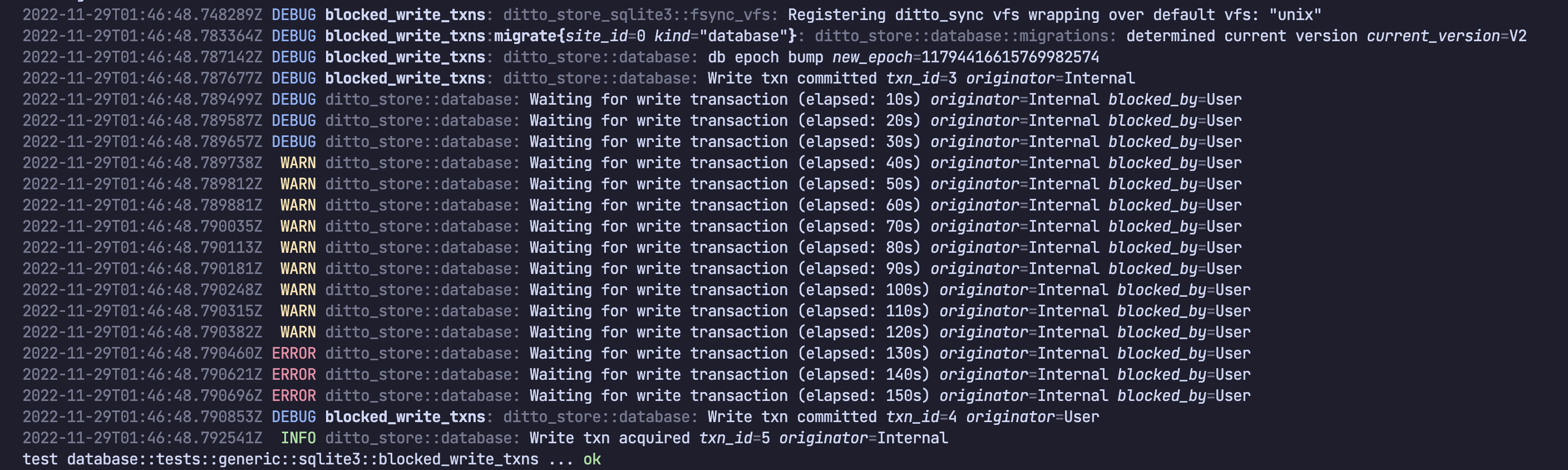 As time progressed, Ditto complained more and more loudly (starting with **DEBUG** logs before eventually logging at **ERROR** level). Eventually the existing transaction finished and blocked transaction was able to proceed.
The write transaction which was blocked was for a Ditto internal component. This is identified by **"originator=Internal"**.
The existing, long-running write transaction which was causing the block was a user call in the public SDK. This is identified by **"blocked\_by=User"**. So a user-level write transaction is blocking some internal workload. This is not *necessarily* a problem, as the internal system will catch up eventually.
### Originators
The three values you'll see for **originator** and **blocked\_by** are:
| **Originator / Blocked By** | **Description** |
| --------------------------- | ------------------------------------------------------ |
| "User" | Any user-level API which modifies data. |
| "Internal" | An internal job (presence data, DB maintenance, etc.). |
| "Replication" | Updating the store with data received via replication. |
## Causes of Blocked Transactions
This section presents a few examples blocked transaction scenarios, how they would appear in logs, and what they might mean.
### User blocks User
An application might block its own write transactions by performing multiple writes at the same time in different places. If one is slow (perhaps it does too much work, or perhaps it reaches out to external APIs, etc.) then the other write transactions will block until it finishes.
```swift Swift theme={null}
// Thread/Queue 1 (starts first):
{
// Somewhere in the app, a long running write transaction exists
ditto.store["people"].findByID(docID).update { mutableDoc in
// Most update tasks are quick, but a developer might
// doing something slow within the update block:
let apiData = getDataFromASlowExternalAPICall() // <-- !!!!
mutableDoc?["age"] = apiData.age
mutableDoc?["ownedCars"].set(DittoCounter())
mutableDoc?["ownedCars"].counter?.increment(by: apiData.count)
}
}
// Thread/Queue 2 (starts second):
{
// Somewhere else in the app, concurrently (e.g. background thread or queue)
// another write transaction tries to update a document.
//
// This will block until the "people" update block above completes.
let docID = try! ditto.store["settings"].upsert([
"_id": "abc123",
"preference": 31,
])
}
```
```kotlin Kotlin theme={null}
// Thread/Queue 1 (starts first):
{
// Somewhere in the app, a long running write transaction exists
ditto.store["people"].findById(docId).update { mutableDoc ->
// Most update tasks are quick, but a developer might
// doing something slow within the update block:
val apiData = getDataFromASlowExternalAPICall() // <-- !!!!
mutableDoc?.let { doc ->
doc["age"] = apiData.age
doc["ownedCars"].set(DittoCounter())
doc["ownedCars"].counter?.increment(amount = apiData.count)
}
}
}
// Thread/Queue 2 (starts second):
{
// Somewhere else in the app, concurrently (e.g. background thread or queue)
// another write transaction tries to update a document.
//
// This will block until the "people" update block above completes.
val docId = try! ditto.store["settings"].upsert(
mapOf(
"_id" to "abc123",
"preference" to 31,
)
)
}
```
```java Java theme={null}
// CompletableFuture 1 (starts first):
CompletableFuture.supplyAsync(() -> {
// Somewhere in the app, a long running write transaction exists
// Most update tasks are quick, but a developer might be
// doing something slow within the transaction:
return getDataFromASlowExternalAPICall(); // <-- !!!!
}).thenCompose(apiData -> {
Map args = new HashMap<>();
args.put("docId", docId);
args.put("age", apiData.getAge());
args.put("count", apiData.getCount());
return ditto.getStore().execute(
"UPDATE people SET age = :age, ownedCars = ownedCars + :count WHERE _id = :docId",
args
);
});
// CompletableFuture 2 (starts second):
CompletableFuture.supplyAsync(() -> {
// Somewhere else in the app, concurrently (e.g. background thread)
// another write transaction tries to update a document.
//
// This will block until the "people" update above completes.
Map doc = new HashMap<>();
doc.put("_id", "abc123");
doc.put("preference", 31);
Map args = new HashMap<>();
args.put("doc", doc);
return ditto.getStore().execute("INSERT INTO settings VALUES (:doc)", args);
});
```
## Android App Store Submission Issues
### Google Play Store 16KB Page Size Rejection
Starting in November 2025, Google Play requires all native libraries (`.so` files) in Android apps to be aligned to 16KB memory page sizes. If your app bundles an older version of the Ditto SDK, Google Play may reject your submission with an error similar to:
> This release is not compliant with the Google Play 64-bit requirement or the 16 KB page size requirement.
This issue affects **React Native** apps using Ditto SDK versions **earlier than 4.14.4**. The `libdittorn.so` library in those versions is not 16KB-aligned.
**Solution:** Upgrade to one of the following SDK versions:
* **React Native SDK 4.14.4** or later (v4 line)
* **React Native SDK 5.0.0** or later (v5 line)
No code changes are required — upgrading the SDK version resolves the issue. After upgrading, rebuild and resubmit your app to Google Play.
Other Ditto SDK platforms (Kotlin, Swift, etc.) with Android targets may also require 16KB alignment. Check the [release notes](/sdk/latest/release-notes) for your platform to confirm which version includes the fix.
### Still stuck?
If you're still stuck, please contact Ditto support.
As time progressed, Ditto complained more and more loudly (starting with **DEBUG** logs before eventually logging at **ERROR** level). Eventually the existing transaction finished and blocked transaction was able to proceed.
The write transaction which was blocked was for a Ditto internal component. This is identified by **"originator=Internal"**.
The existing, long-running write transaction which was causing the block was a user call in the public SDK. This is identified by **"blocked\_by=User"**. So a user-level write transaction is blocking some internal workload. This is not *necessarily* a problem, as the internal system will catch up eventually.
### Originators
The three values you'll see for **originator** and **blocked\_by** are:
| **Originator / Blocked By** | **Description** |
| --------------------------- | ------------------------------------------------------ |
| "User" | Any user-level API which modifies data. |
| "Internal" | An internal job (presence data, DB maintenance, etc.). |
| "Replication" | Updating the store with data received via replication. |
## Causes of Blocked Transactions
This section presents a few examples blocked transaction scenarios, how they would appear in logs, and what they might mean.
### User blocks User
An application might block its own write transactions by performing multiple writes at the same time in different places. If one is slow (perhaps it does too much work, or perhaps it reaches out to external APIs, etc.) then the other write transactions will block until it finishes.
```swift Swift theme={null}
// Thread/Queue 1 (starts first):
{
// Somewhere in the app, a long running write transaction exists
ditto.store["people"].findByID(docID).update { mutableDoc in
// Most update tasks are quick, but a developer might
// doing something slow within the update block:
let apiData = getDataFromASlowExternalAPICall() // <-- !!!!
mutableDoc?["age"] = apiData.age
mutableDoc?["ownedCars"].set(DittoCounter())
mutableDoc?["ownedCars"].counter?.increment(by: apiData.count)
}
}
// Thread/Queue 2 (starts second):
{
// Somewhere else in the app, concurrently (e.g. background thread or queue)
// another write transaction tries to update a document.
//
// This will block until the "people" update block above completes.
let docID = try! ditto.store["settings"].upsert([
"_id": "abc123",
"preference": 31,
])
}
```
```kotlin Kotlin theme={null}
// Thread/Queue 1 (starts first):
{
// Somewhere in the app, a long running write transaction exists
ditto.store["people"].findById(docId).update { mutableDoc ->
// Most update tasks are quick, but a developer might
// doing something slow within the update block:
val apiData = getDataFromASlowExternalAPICall() // <-- !!!!
mutableDoc?.let { doc ->
doc["age"] = apiData.age
doc["ownedCars"].set(DittoCounter())
doc["ownedCars"].counter?.increment(amount = apiData.count)
}
}
}
// Thread/Queue 2 (starts second):
{
// Somewhere else in the app, concurrently (e.g. background thread or queue)
// another write transaction tries to update a document.
//
// This will block until the "people" update block above completes.
val docId = try! ditto.store["settings"].upsert(
mapOf(
"_id" to "abc123",
"preference" to 31,
)
)
}
```
```java Java theme={null}
// CompletableFuture 1 (starts first):
CompletableFuture.supplyAsync(() -> {
// Somewhere in the app, a long running write transaction exists
// Most update tasks are quick, but a developer might be
// doing something slow within the transaction:
return getDataFromASlowExternalAPICall(); // <-- !!!!
}).thenCompose(apiData -> {
Map args = new HashMap<>();
args.put("docId", docId);
args.put("age", apiData.getAge());
args.put("count", apiData.getCount());
return ditto.getStore().execute(
"UPDATE people SET age = :age, ownedCars = ownedCars + :count WHERE _id = :docId",
args
);
});
// CompletableFuture 2 (starts second):
CompletableFuture.supplyAsync(() -> {
// Somewhere else in the app, concurrently (e.g. background thread)
// another write transaction tries to update a document.
//
// This will block until the "people" update above completes.
Map doc = new HashMap<>();
doc.put("_id", "abc123");
doc.put("preference", 31);
Map args = new HashMap<>();
args.put("doc", doc);
return ditto.getStore().execute("INSERT INTO settings VALUES (:doc)", args);
});
```
## Android App Store Submission Issues
### Google Play Store 16KB Page Size Rejection
Starting in November 2025, Google Play requires all native libraries (`.so` files) in Android apps to be aligned to 16KB memory page sizes. If your app bundles an older version of the Ditto SDK, Google Play may reject your submission with an error similar to:
> This release is not compliant with the Google Play 64-bit requirement or the 16 KB page size requirement.
This issue affects **React Native** apps using Ditto SDK versions **earlier than 4.14.4**. The `libdittorn.so` library in those versions is not 16KB-aligned.
**Solution:** Upgrade to one of the following SDK versions:
* **React Native SDK 4.14.4** or later (v4 line)
* **React Native SDK 5.0.0** or later (v5 line)
No code changes are required — upgrading the SDK version resolves the issue. After upgrading, rebuild and resubmit your app to Google Play.
Other Ditto SDK platforms (Kotlin, Swift, etc.) with Android targets may also require 16KB alignment. Check the [release notes](/sdk/latest/release-notes) for your platform to confirm which version includes the fix.
### Still stuck?
If you're still stuck, please contact Ditto support.